
To maximize your ultrawide monitor’s productivity, avoid common setup mistakes like placing the screen too far or below eye level, which strains your neck and eyes. Don’t skip monitor calibration, as poor color settings and brightness can cause fatigue and reduce clarity. Keep your workspace organized, and manage cables properly to prevent clutter. Without these adjustments, your ultrawide won’t serve its true purpose. Learn how to optimize your setup for maximum efficiency and comfort.
Key Takeaways
- Poor ergonomic positioning causes discomfort, reducing focus and productivity over time.
- Failing to calibrate monitor settings leads to eye strain and decreased visual clarity.
- Cluttered workspace and ineffective window management hinder multitasking efficiency.
- Disorganized cables create visual chaos and potential setup disruptions.
- Ignoring overall ergonomic and organizational adjustments diminishes the productivity benefits of an ultrawide monitor.
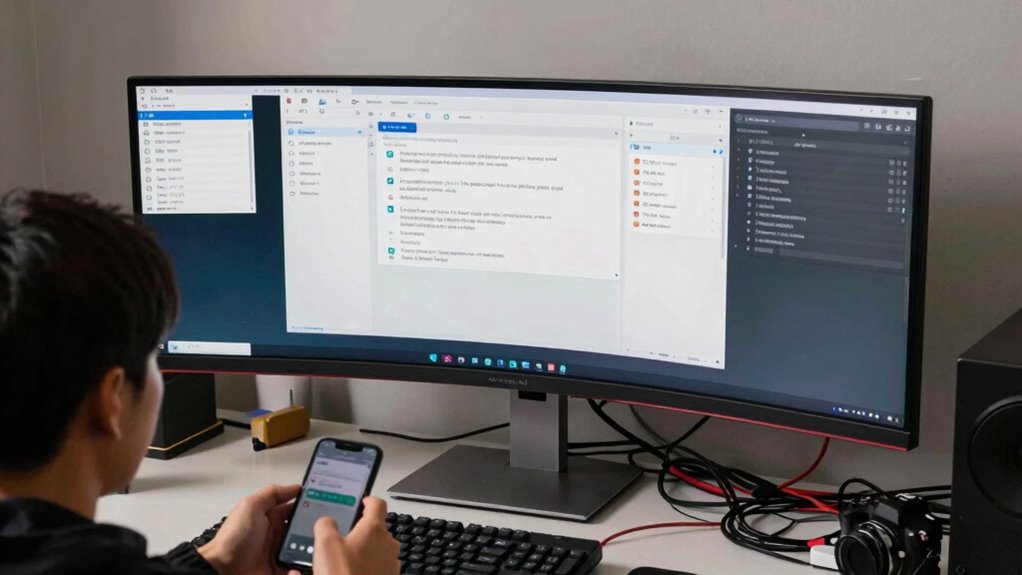
While upgrading to an ultrawide monitor can considerably boost your productivity, many users unknowingly make setup mistakes that negate these benefits. One of the most common errors is neglecting proper ergonomic adjustments. If your monitor isn’t positioned correctly, you may find yourself straining your neck, eyes, or back after just a short period. To avoid this, ensure the top of the screen is at or just below eye level, and place the monitor directly in front of you at about an arm’s length away. This reduces unnecessary movement and helps maintain good posture, preventing discomfort that can hinder your focus over time. Additionally, adjust the height, tilt, and swivel of your monitor to suit your natural viewing angle. Ignoring these ergonomic details can turn what should be a productivity boon into a source of fatigue and physical strain.
Another mistake is overlooking monitor calibration. An ultrawide display with improper color settings or incorrect brightness levels can cause eye fatigue and reduce your ability to work accurately. Spend some time calibrating your monitor to achieve optimal color accuracy and contrast. This not only makes visuals more comfortable to look at but also helps you distinguish subtle details, especially when working with graphics, spreadsheets, or multiple windows. Proper calibration reduces eye strain and enhances overall clarity, allowing you to focus longer without discomfort. Recognizing the importance of color accuracy can significantly improve your visual comfort and work precision.
Many users also underestimate the importance of managing multiple windows effectively on an ultrawide screen. It’s tempting to maximize everything at once, but cluttered layouts can lead to distraction. Instead, learn to use window management tools or virtual desktops to organize your workspace. This keeps your focus sharp and prevents the ultrawide monitor from becoming overwhelming, which can diminish the productivity gains it offers. Proper workspace organization is crucial for maximizing the benefits of an ultrawide setup, especially when dealing with complex or multitasking workflows.
Furthermore, neglecting cable management can create a cluttered, distracting environment. A messy desk with tangled cables not only looks unprofessional but can also interfere with your setup’s ergonomic stability. Use cable organizers or clips to keep everything tidy and out of your way. A clean workspace minimizes accidental bumps or knocks that could disrupt your setup and ensures your workspace remains comfortable. Good cable management helps maintain an efficient and professional environment, further supporting your productivity.

WorkEZ Monitor Stand, Single Mount Height Adjustable Monitor Riser for Desk, Ergonomic Desktop Computer Stand
IMPROVE YOUR POSTUR: Elevate your computer monitor riser for desk from 2 to 18 inches above your desk…
As an affiliate, we earn on qualifying purchases.
As an affiliate, we earn on qualifying purchases.
Frequently Asked Questions
How Do I Choose the Best Ultrawide Monitor Size for Work?
To choose the best ultrawide monitor size for work, consider your workspace and the type of tasks you’ll do. Opt for a size that fits comfortably without cluttering your desk, typically 34-38 inches. Prioritize monitor calibration and color accuracy if your work involves design or editing. Confirm the size enhances productivity without causing eye strain, and test different options if possible before making a final decision.
What Ergonomic Adjustments Are Essential for Ultrawide Setups?
Did you know that poor ergonomic adjustments can reduce your productivity by up to 20%? To optimize your ultrawide setup, guarantee your monitor height aligns with your eye level, preventing neck strain. Use an ergonomic chair that supports proper posture, keeping your feet flat and back supported. Regularly adjust your monitor and chair to maintain comfort, reducing fatigue and enhancing focus throughout your workday.
Can Ultrawide Monitors Cause Eye Strain Over Time?
Yes, ultrawide monitors can cause eye strain over time. To minimize this, you should adjust the color calibration for comfortable viewing and guarantee the refresh rate is high enough to reduce flickering. Additionally, take regular breaks, keep your monitor at eye level, and reduce glare. Proper setup and these adjustments help prevent eye fatigue, allowing you to work comfortably longer without strain.
How Should I Organize Windows on an Ultrawide Screen?
You should organize windows on your ultrawide screen using window snapping to quickly arrange multiple applications side by side, maximizing space and efficiency. Keep your workspace visually comfortable by calibrating your monitor’s color settings, reducing eye strain during long sessions. Arrange windows logically—perhaps dedicating one section for work, another for communication—and regularly reassess your layout to guarantee it remains functional and comfortable for your workflow.
What Software Tools Improve Ultrawide Multitasking Efficiency?
Imagine your ultrawide screen as a bustling control room—software tools like PowerToys FancyZones, Magnet, or DisplayFusion become your master controllers, streamlining multitasking shortcuts and window management. They let you snap, resize, and organize multiple windows effortlessly, transforming chaos into order. With these tools, you’ll navigate your expansive workspace smoothly, boosting productivity by keeping everything within reach and perfectly aligned—no more toggling or hunting for the right window.

Datacolor Spyder X Pro – Monitor Calibrator. Color Calibration Tool for Monitor Display. Ensures accurate color for photographic images. Ideal for first-time users
𝗘𝗡𝗦𝗨𝗥𝗘 𝗔𝗖𝗖𝗨𝗥𝗔𝗧𝗘 𝗖𝗢𝗟𝗢𝗥: Groundbreaking lens-based color engine provides a higher level of color accuracy for multiple monitors. Spyder…
As an affiliate, we earn on qualifying purchases.
As an affiliate, we earn on qualifying purchases.
Conclusion
To truly harness the power of your ultrawide setup, avoid these common pitfalls like clutter or poor positioning. Think of your workspace as a finely tuned orchestra—every element should work in harmony. When you optimize your setup, you’ll reveal its full potential and watch your productivity soar. Don’t let these mistakes turn your wide-angle view into a narrow focus—tune your workspace, and see your efficiency expand like a sunrise over the horizon.
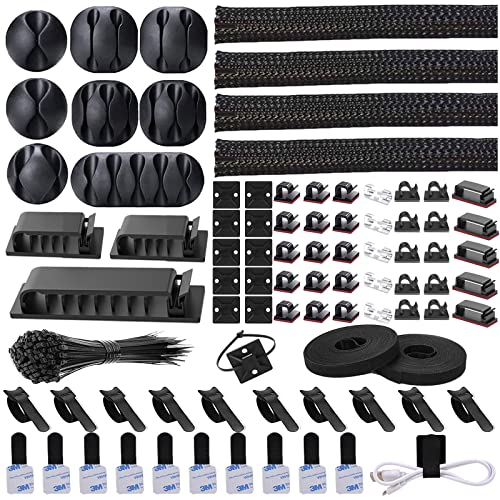
N NOROCME 192 PCS Cable Management Kit 4 Wire Organizer Sleeve,11 Cable Holder,35Cord Clips 10+2 Roll Cable Organizer Straps and 100 Fastening Cable Ties for Computer TV Under Desk, black,clear
Cable Management Kit: 4pcs Cable Sleeves( 20 in L x 0.4 in w), 20pcs reusable wire ties,35Cable Clips…
As an affiliate, we earn on qualifying purchases.
As an affiliate, we earn on qualifying purchases.

KTC 34 Inch Ultrawide Monitor, 180Hz WQHD 3440X1440 Curved Gaming Monitor, 1500R PC Monitor, HDR, FreeSync & G-Sync, HDMI, DisplayPort, VESA, Tilt Swivel Height Pivot Adjustment, H34S18S
Ultrawide QHD Curved Monitor: 34 inch 1500R curved display with 21:9 aspect ratio and WQHD 3440X1440 resolution, immerses…
As an affiliate, we earn on qualifying purchases.
As an affiliate, we earn on qualifying purchases.