
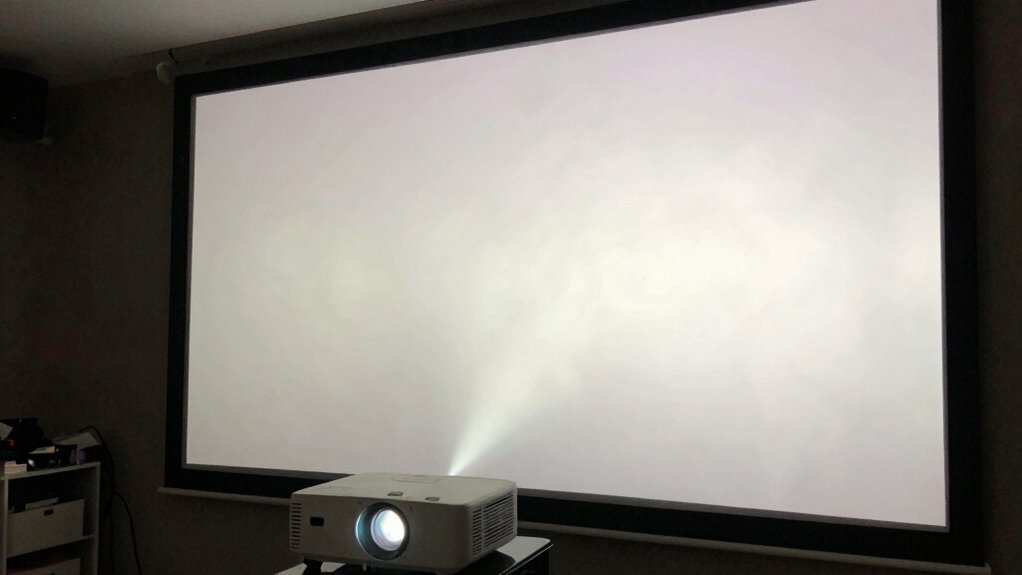

If you don’t properly calibrate your projector’s brightness, contrast, and color settings, your images will look dull and washed out. Ignoring room conditions, like ambient light and screen cleanliness, makes this worse. Without adjusting settings to suit your environment, even the best projector can’t produce vibrant, sharp images. Regular calibration and controlling lighting are key. Keep exploring to learn how you can avoid this common mistake and get the best picture quality.
Key Takeaways
- Failing to properly calibrate brightness, contrast, and color settings causes washed-out images.
- Not adjusting projector settings based on room lighting conditions leads to dull visuals.
- Overlooking ambient light control allows excessive light to wash out the projected image.
- Ignoring dust buildup on the screen reduces image vibrancy and clarity.
- Using default settings without fine-tuning results in a lack of contrast and color depth.
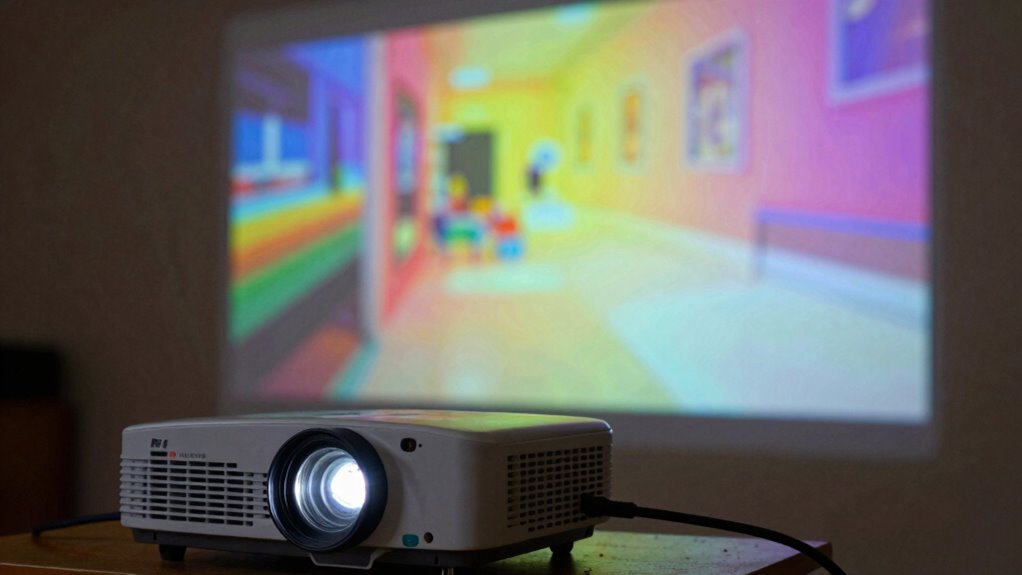
Have you ever struggled with a blurry or poorly aligned projector image? If so, you might be falling into the common setup mistake that makes everything look washed out. One of the biggest errors people make is neglecting proper screen calibration. When you set up your projector, it’s tempting to just plug it in and start projecting. But if you skip adjusting the projector’s settings for brightness, contrast, and color, the image can appear dull and washed out. Proper screen calibration ensures that the colors are vibrant and the contrast is sharp, giving you a clear, vivid picture. Without it, even the brightest images can look flat, losing details in the shadows and highlights. Additionally, microplastics in dust can settle on your screen and affect image clarity over time, so regular cleaning is important. Regular maintenance of your projector and screen can also prevent issues like dust accumulation, which can diminish image quality over time. Another critical factor often overlooked is ambient lighting. Many assume that a dark room is enough to improve picture quality, but the reality is more nuanced. Too much ambient light can overpower the projector’s brightness, causing the image to look washed out or faded. Conversely, a well-controlled lighting environment enhances the picture’s clarity and color richness. You should aim to minimize ambient light during viewing, especially from windows or ceiling lights that directly hit the screen. Installing blackout curtains or dimming the lights can make a significant difference. When ambient lighting is in check, your projector’s brightness and contrast levels will perform as intended, allowing you to enjoy a crisp, vibrant image. A dehumidifier can also help control moisture levels in the room, preventing issues like foggy lenses or mold that can impact image quality. A common mistake is not adjusting the projector’s settings according to the room’s lighting conditions. This oversight results in an image that appears dull or washed out, no matter how high the projector’s brightness is set. To avoid this, spend time fine-tuning the projector’s settings after ensuring the room’s lighting is optimized. It’s also helpful to understand the importance of proper calibration techniques to achieve the most accurate image reproduction. Proper calibration techniques help you maximize your projector’s potential and prevent common issues like washed-out images. These small but essential steps help you achieve a balanced image with rich colors and deep blacks. In the end, the key to avoiding the washed-out look is paying attention to screen calibration and ambient lighting. Don’t rush through the setup process. Take the time to calibrate your projector correctly and control the lighting in your space. Doing so will dramatically improve your viewing experience, making images pop with vibrant colors and sharp details. When you get these elements right, your projector will no longer produce a dull, washed-out picture — instead, it will deliver a crisp, clear image that truly stands out.
projector calibration tool
As an affiliate, we earn on qualifying purchases.
As an affiliate, we earn on qualifying purchases.
Frequently Asked Questions
How Do I Identify if My Projector Is the Cause of Washed-Out Images?
You can tell if your projector causes washed-out images by checking its color calibration and lens adjustment. If the colors appear dull or faded, it’s likely a calibration issue. Also, make certain the lens isn’t dirty or misaligned, which can affect image quality. Adjust the lens and recalibrate the colors to see if this improves brightness and vibrancy. If problems persist, your projector might need professional servicing or replacement.
Can Changing the Projector’s Position Improve Image Contrast?
Yes, changing your projector’s position can improve image contrast. Adjust the projection distance to reduce glare and guarantee the projector isn’t too close or too far from the screen. Also, calibrate the lens properly to optimize focus and brightness. Proper positioning and lens calibration help prevent washed-out images, making the contrast sharper and colors more vibrant. Experimenting with these adjustments can considerably enhance your viewing experience.
Are There Specific Settings to Prevent Washed-Out Visuals During Setup?
You can prevent washed-out visuals by adjusting your projector’s settings. Did you know proper color calibration enhances image depth by up to 30%? To do this, fine-tune your color settings and guarantee lens alignment is precise. Correct lens alignment reduces distortion and improves contrast, making images more vibrant. Regularly calibrate your projector and check alignment during setup to enjoy rich, clear visuals every time.
Does Room Lighting Affect the Projector’s Color Accuracy?
Yes, ambient lighting considerably impacts your projector’s color accuracy. Bright room lighting can wash out colors, making images look dull or faded. To get the best results, control your ambient lighting during setup and viewing. Also, perform proper color calibration in the current lighting conditions to guarantee vibrant, accurate colors. Dimming lights or closing blinds helps improve contrast and color richness, giving you a more immersive viewing experience.
What Type of Screen Material Minimizes Washed-Out Effects?
Ironically, the best screen material to reduce washed-out effects isn’t the brightest or most reflective. You should opt for a matte, gray screen with specialized coatings designed to absorb ambient light rather than reflect it. These screen coatings minimize the impact of ambient lighting, helping your projected images stay vibrant and clear. So, choose a screen that’s less reflective and more focused on controlling ambient light for the most accurate colors.
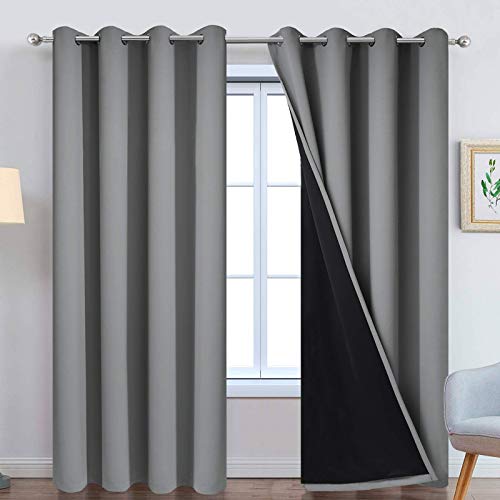
Yakamok 100% Blackout Curtains 84 Inches Long, 2 Thick Layers Heat and Full Light Blocking Soft Thermal Insulated Drapes for Bedroom(52" Wide Each Panel, Grey, 2 Panels)
PACKAGE MADE:2 panels per package. Each Lined Curtain measures 52" wide x 84" long. 8 Silvery Grommets per…
As an affiliate, we earn on qualifying purchases.
As an affiliate, we earn on qualifying purchases.
Conclusion
Remember, even the brightest stars can fade if not properly aligned. Just as Icarus soared too close to the sun, overlooking your projector’s settings can lead to a washed-out display that dims your experience. By paying attention to contrast, brightness, and placement, you guarantee your visuals shine with clarity and vibrancy. Don’t let a simple mistake overshadow your vision—trust your instincts, fine-tune your setup, and watch your images come alive with the brilliance they deserve.

Screen Cleaner Spray (16oz – 473ml) – Best Large Cleaning Kit for LCD LED OLED TV, Smartphone, iPad, Laptop, Touchscreen, Computer Monitor, Electronic Devices, Microfiber Cloth Wipes and 2 Nozzles
SCREEN CLEANER SPRAY and cloth are designed for the high-end devices and works flawlessly for all electronic screens,…
As an affiliate, we earn on qualifying purchases.
As an affiliate, we earn on qualifying purchases.
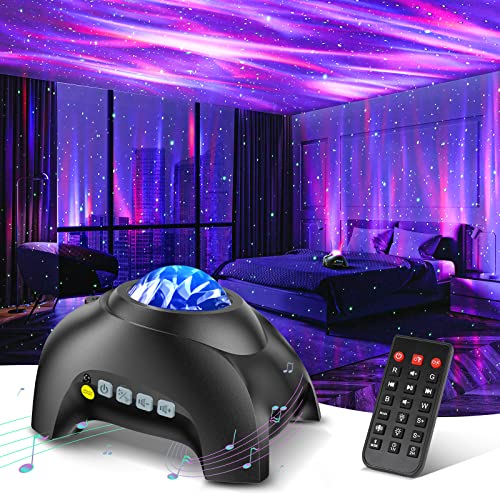
Northern Galaxy Light Aurora Projector with 33 Light Effects, Night Lights LED Star Projector for Bedroom Nebula Lamp, Remote Control, White Noises, Bluetooth Speaker for Parties Black
🏡【𝐔𝐩𝐠𝐫𝐚𝐝𝐞𝐝 𝟑-𝐢𝐧-𝟏 𝐆𝐚𝐥𝐚𝐱𝐲 𝐏𝐫𝐨𝐣𝐞𝐜𝐭𝐨𝐫】Watch the splendid aurora views without chasing around or hiking far away, turning your home…
As an affiliate, we earn on qualifying purchases.
As an affiliate, we earn on qualifying purchases.