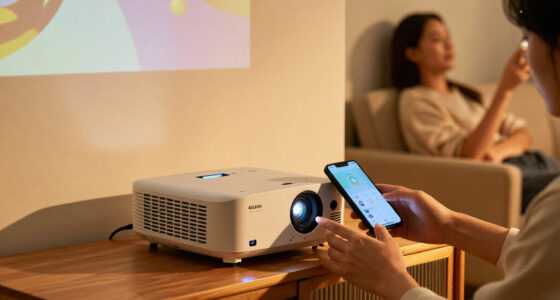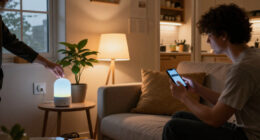
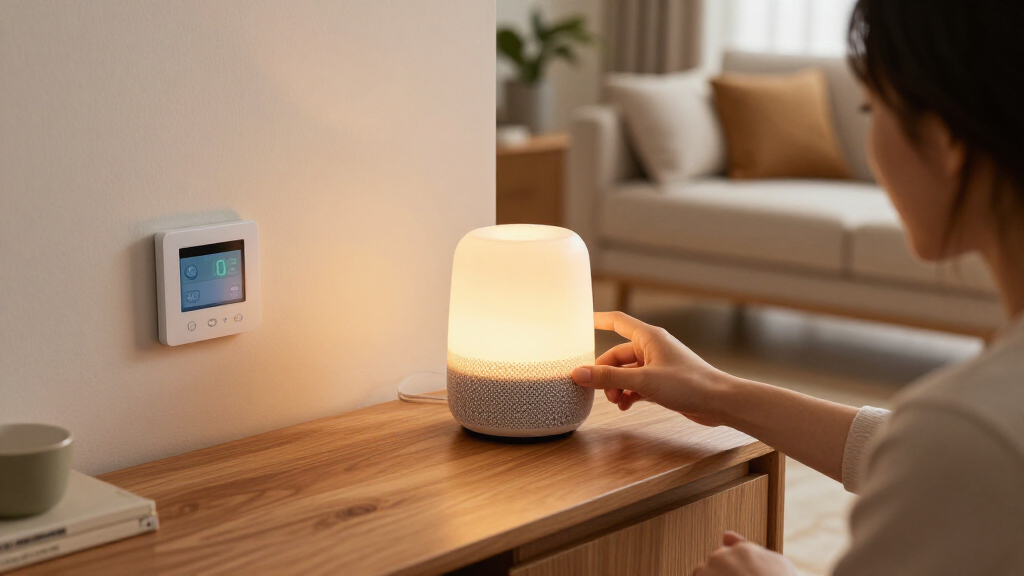

Choose and set up a smart home device bundle that fits your rooms, network, and daily routines. This guide is for beginners who want connected devices such as lights, plugs, sensors, or a hub to work together through an app or voice assistant. Allow 1–3 hours, depending on the number of devices and any account setup.

Get the latest gadgets delivered free with Prime
- Fast, free delivery on millions of items
- Prime Video, Amazon Music and more included
- Member-only deals all year

Smart Home Starter Kit with Echo Hub, Amazon Smart Plug, and 4 Smart Bulbs
- ✔ Included items: Echo Hub, Amazon Smart Plug, 4 Amazon Basics Smart Bulbs
- ✔ Display: 8-inch touchscreen, 1280 x 800 resolution
- ✔ Connectivity: Dual-band Wi-Fi, Bluetooth, Zigbee, Thread, Matter

Ring Alarm 14-Piece Security System Kit
- ✔ Kit contents: Base Station, 2 Keypads, 8 Contact Sensors, 2 Motion Detectors, Range Extender
- ✔ Connectivity: Ethernet, Wi-Fi, Z-Wave, Bluetooth for setup
- ✔ Battery backup: Rechargeable, up to 24 hours
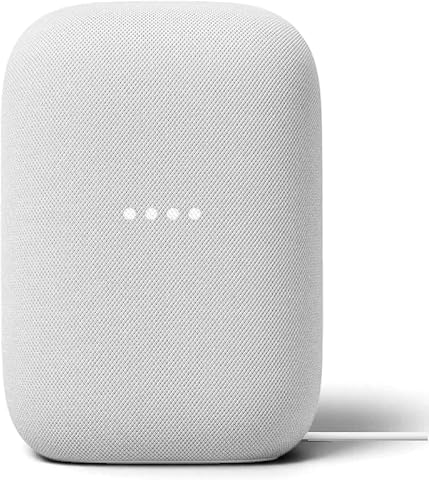
Google Nest Audio (3-Pack) Smart Speakers
- ✔ Unit count: 3 speakers
- ✔ Audio: Stereo mode; multi-room grouping and pairing
- ✔ Drivers: 75 mm woofer and 19 mm tweeter
Difficulty: Beginner | Time: 1–3 hours
What You’ll Need
Tools & Materials:
- A phone or tablet with the bundle’s companion app installed
- A home Wi-Fi network and its password
- The bundle devices, power adapters, and any included hub
- A screwdriver or other installation tool if required by the device instructions
Knowledge:
- Basic use of a phone app
- Ability to connect a phone to home Wi-Fi
Check the manufacturer’s setup guide for each device, especially for wired or battery-powered products. Do not open electrical boxes or modify wiring unless you are qualified to do so. Keep receipts and packaging until every device is connected and working.
Smart Home Starter Kit with Echo Hub, Amazon Smart Plug, and 4 Smart Bulbs
This is the most rounded bundle here for someone building a smart home from the ground up. The Echo Hub touchscreen gives us a visible place to manage compatible devices and routines, while the included plug and four bulbs add immediate everyday controls. Compared with the Ring kit, it is less specialized: it does not provide a spread of contact and motion sensors for a security-focused setup. Compared with the Nest Audio pack, it offers more kinds of control in one box, though it gives up the three-speaker audio setup.Protocol support is a particular strength. With Zigbee, Thread, and Matter alongside Wi-Fi and Bluetooth, the hub can fit into a broader mix of compatible devices, which may reduce the need to manage every accessory through a separate bridge. The 8-inch display also makes routines and device status easier to browse than voice-only control. Buyers should still verify device compatibility before expanding, and this kit is centered on Alexa rather than Google Assistant.Setup is designed to be guided, but installation is not entirely hands-off. The hub needs a suitable USB-C PD adapter or PoE setup, and wall mounting may require a drill and additional hardware. Those practical details matter if the goal is a tidy, permanent control point. For buyers who want a single starting bundle that mixes lighting, plug control, and a hub, it earns our top spot; households whose first priority is intrusion detection should choose Ring instead.
Pros:
- Combines an 8-inch touchscreen hub, one smart plug, and four bulbs.
- Supports Zigbee, Thread, and Matter for compatible device expansion.
- Provides visual controls and Alexa voice routines.
- Can use USB-C PD power or compatible PoE equipment.
Cons:
- A suitable USB-C adapter or PoE converter may need to be supplied separately.
- Wall mounting can require extra hardware and drilling.
- Does not include dedicated contact or motion sensors for security coverage.
Best for: New smart home owners who want a central Alexa touchscreen plus basic lighting and plug controls in one bundle.
Not ideal for: Buyers whose main need is a multi-room alarm system, or those who want a Google Assistant-centered setup.
Bottom line: We recommend this as the most balanced bundle for buyers who want a visible, expandable Alexa control center and a few useful devices to start.
“We recommend this as the most balanced bundle for buyers who want a visible, expandable Alexa control center and a few useful devices to start.”
Ring Alarm 14-Piece Security System Kit
When the bundle’s job is to cover doors, windows, and movement, Ring is the most purpose-built option in this lineup. Its eight contact sensors and two motion detectors offer substantially more security coverage than the Echo Hub kit or Nest speakers, and the two keypads give household members a physical way to arm and disarm the system. The base station, range extender, and app-guided setup round out a system designed for a two-to-four-bedroom home.That specialization is also the main reason it does not rank first overall. Ring does not provide the general smart home mix of bulbs, plug, and touchscreen that comes with Echo Hub, nor does it serve as a multi-room audio bundle like Nest Audio. It can integrate with Alexa and compatible locks, but buyers should think of it primarily as a security system with smart home connections, not a universal control center.There is an important ongoing tradeoff: professional monitoring and cellular backup are subscription-dependent. The rechargeable battery backup is useful during a power interruption, but cellular service availability can depend on third-party carriers. We would choose Ring for households that want a substantial DIY sensor layout and are comfortable checking which monitoring features require a plan. Those seeking routine lighting control without a security focus will get a more suitable starting point from Echo Hub.
Pros:
- Includes eight contact sensors and two motion detectors for broad coverage.
- Two keypads support convenient arming and disarming.
- App-guided DIY setup and Alexa compatibility.
- Expandable with compatible sensors and accessories.
Cons:
- Professional monitoring and cellular backup require a subscription.
- Cellular backup depends on third-party carrier availability.
- Provides fewer general-purpose controls than the Echo Hub bundle.
Best for: Households in a two-to-four-bedroom home that want multiple entry sensors, motion detection, and keypad controls.
Not ideal for: Buyers who want an all-purpose smart home hub with included lights and plug, or who do not want subscription-dependent monitoring options.
Bottom line: We recommend Ring for buyers who value dedicated sensor coverage and keypad access more than lighting, audio, or broad device control.
“We recommend Ring for buyers who value dedicated sensor coverage and keypad access more than lighting, audio, or broad device control.”
Google Nest Audio (3-Pack) Smart Speakers
The Nest Audio 3-Pack makes the most sense when a buyer wants smart home access to follow music around the home. Three speakers support multi-room playback and stereo pairing, while Google Assistant adds voice control for compatible smart devices. As a bundle, it has a narrower purpose than the Echo Hub kit: there is no touchscreen controller, included plug, or starter lighting. It also lacks the dedicated security sensors that make Ring the better fit for door and motion coverage.For households already using Google Assistant, spreading speakers across rooms can make voice commands and audio playback feel more convenient than relying on one central speaker. The specified woofer and tweeter provide a fuller speaker setup than a small control hub, and Bluetooth adds a local connection option. These strengths are tied to placement, however: each speaker needs corded power, so outlets and cable visibility shape where the bundle can go.We place it third because it is the least complete choice for buyers interpreting “smart home bundle” as a mix of control and devices. It is instead a focused audio bundle with smart assistant functions. The speakers are freestanding and not water resistant, making them unsuitable for exposed outdoor use or wet areas. Choose Nest Audio when room-to-room sound and Google Assistant matter most; choose Echo Hub for a more varied set of included controls, or Ring for security coverage.
Pros:
- Three speakers support multi-room playback and stereo pairing.
- Built-in Google Assistant can control compatible smart home devices.
- Wi-Fi and Bluetooth provide streaming and connection options.
- Compact freestanding design suits indoor room placement.
Cons:
- Each speaker requires corded power and has no built-in battery.
- Not water resistant, limiting use near wet areas or outdoors.
- Does not include a hub screen, lighting, plug, or security sensors.
Best for: Google Assistant households that want voice access and grouped music playback in several indoor rooms.
Not ideal for: Buyers looking for included lighting, a touchscreen smart home controller, alarm sensors, or portable speakers.
Bottom line: We recommend this bundle when multi-room audio is the priority and the household already prefers Google Assistant.
“We recommend this bundle when multi-room audio is the priority and the household already prefers Google Assistant.”
As an Amazon Associate we earn from qualifying purchases.
Before You Start
Confirm that the bundle supports the phone platform, Wi-Fi band, and smart home platform you plan to use. Some devices require 2.4 GHz Wi-Fi, a separate hub, or a specific voice assistant. Check these requirements before opening or mounting anything.
Choose a location for the hub near a power outlet and within range of the router and devices. Have your Wi-Fi name and password ready. If you use a separate guest network, verify that devices on it can communicate with the phone and hub during setup.
Step-by-Step Instructions
Step 1: List the devices and requirements
Unpack the bundle and write down each device, its intended room, and any setup requirement shown on its label or in the manual. Mark which items need a hub, batteries, a particular Wi-Fi band, or permanent installation. Compare those requirements with your network and home layout before placing devices.
Tip:Keep small parts and labels together. A device’s pairing code or QR code may be needed during app setup.
Check: You have a device list, a planned location for each item, and no unresolved compatibility requirement.
Step 2: Install the companion app and account
Install the manufacturer’s official app from your phone’s app store. Create an account or sign in, then allow only the permissions the app requests for setup, such as Bluetooth or local network access. Enable multifactor authentication if the account offers it, and save the login details securely.
Tip:Use the same account throughout the setup. Creating separate accounts for devices in one bundle can prevent shared controls and automations.
Check: The app opens to your account and can begin adding a device.
Step 3: Prepare the network and hub
Connect your phone to the home Wi-Fi network you intend the devices to use. If the bundle includes a hub, plug it into power and connect it to the router as directed. Wait for its status light or app message to show that it is ready. If setup calls for a 2.4 GHz network, select that network before pairing.
Tip:Do not change router security or split network bands unless the manufacturer’s instructions require it. If your router combines bands under one name, follow the app’s specific setup guidance.
Check: The app recognizes the hub, or the hub’s indicator shows a ready state described in its manual.
Step 4: Add devices one at a time
In the app, choose the option to add a device and select the correct model or device type. Scan its QR code or enter its pairing code, then follow the prompts to power it on and enter pairing mode. Add one item at a time, wait for confirmation, and give it a clear name such as “Hallway light” or “Kitchen plug.”
Tip:Keep each device close to the hub or router during first pairing. Move it to its final location only after the app confirms setup.
Check: Each device appears in the app with the name and room you assigned, and no item remains in pairing mode.
Step 5: Place or mount each device
Install devices in their planned locations according to the manufacturer’s instructions. For plug-in devices, use an accessible outlet and avoid overloading extension leads. For battery sensors, check the required orientation and mounting surface. For wired products, follow the product’s safety instructions and use a qualified electrician when the work involves fixed wiring.
Tip:Test a device at its intended location before securing adhesive mounts or drilling holes. A weak wireless signal can make an otherwise successful pairing unreliable.
Check: Devices are firmly placed, powered, and still show as online in the app.
Group devices by room in the app, then check that each device is assigned to the correct room. If you use a voice assistant or a broader smart home platform, link it through the manufacturer’s supported integration and approve the requested connection. Avoid linking accounts through unofficial services.
Tip:Use names that are easy to say and distinguish, such as “Desk lamp” and “Bedside lamp,” rather than naming both “Lamp.”
Check: The app displays devices in the right rooms, and the linked platform can see the devices you chose to share.
Step 7: Test controls and set a simple routine
Test each device from the app: switch lights or plugs on and off, check sensor status, and confirm any adjustable settings respond. Then create one simple routine, such as turning a light on at a set time. Review its trigger, device, and schedule before saving it.
Tip:Start with a routine that is easy to observe and reverse. Add more complex conditions only after basic controls work consistently.
Check: Manual controls respond, and the routine appears in the app with the intended devices and schedule.
Step 8: Review access and finish setup
Check the app’s household or sharing settings and invite only people who need access. Review notifications and automation permissions, then install any available device firmware updates through the app. After updates finish, test the devices again and store manuals, pairing details, and receipts in a safe place.
Tip:Do not unplug a hub or remove a device’s power while its firmware is updating.
Check: All devices show as online after updates, household access is intentional, and you can control the bundle from the app.
Common Mistakes to Avoid
- Buying a bundle before checking Wi-Fi, hub, or platform compatibility. — Compare every device’s requirements with your router, phone, and chosen voice assistant before purchase or installation.
- Pairing devices far from the router or hub. — Complete initial pairing nearby, then test each device in its planned location before mounting it.
- Using vague or duplicate device names. — Name devices by room and function so app controls, routines, and voice commands target the intended item.
- Creating several routines before testing manual controls. — Test each device on its own first, then add one simple routine and confirm its behavior.
Troubleshooting
Problem: The app cannot find a device during pairing.
Solution: Confirm that the device has power and is in pairing mode. Check Bluetooth or local network permissions, verify the phone is on the required Wi-Fi band, and retry near the hub or router. Restart the device using the manufacturer’s reset instructions if it remains undiscoverable.
Problem: A device pairs but appears offline in its final location.
Solution: Move it closer to the router or hub and check whether walls, appliances, or distance are weakening the signal. If it reconnects nearby, choose a closer location or use a compatible range extender or hub placement recommended by the manufacturer.
Problem: A voice assistant does not show the devices.
Solution: Confirm the manufacturer account is linked to the correct assistant account. Refresh or rediscover devices in the assistant app, and check that the devices are online in their original app first.
Problem: A routine runs at the wrong time or not at all.
Solution: Check the routine’s schedule, time zone, trigger, and selected devices. Confirm the phone or hub has the correct time settings and that the target devices are online, then run a manual test.
What Success Looks Like
The bundle is set up when every device appears online in its assigned room, app controls produce the expected response, any linked voice assistant can find the intended devices, and the test routine runs as configured. Check the app once more after an hour to catch devices that disconnect after initial setup.
Next Steps
Use the bundle for a few days before adding more routines. Adjust device placement if sensors miss events or controls respond slowly. Review shared access when household members change, install firmware updates through the app, and keep a note of the router and account settings needed if you replace equipment.
Frequently Asked Questions
Do all smart home devices in a bundle need the same brand?
No. Mixed brands can work together when they support the same hub, platform, or compatible standard. Check the exact model’s compatibility before buying; brand names alone do not confirm that devices can share controls or routines.
Does every smart home bundle need a hub?
No. Some devices connect directly to Wi-Fi or another supported wireless network, while others require a hub. A hub may also help devices communicate even when it is not strictly required. Check the product requirements for the bundle you have.
Why does a device require 2.4 GHz Wi-Fi?
Some smart home products use 2.4 GHz because it can provide useful range through walls and is supported by low-power network hardware. If setup fails on a combined-band network, follow the manufacturer’s steps for connecting the device to the correct band.
Can I move devices after setup?
Usually. Move the device, then check that it remains online and responds in the app. Sensors may need repositioning or recalibration, and a device that moves out of wireless range may need a different location or compatible hub.
Fall Picks

DJI Osmo Action 4 Essential Combo Waterproof 4K Action Camera
As an affiliate, we earn on qualifying purchases.